Computer monitors ownership guide: calibration, stands and long-term comfort
A monitor remains useful when the signal path, stand, viewing environment and settings stay controlled. Chasing perfect colour or maximum brightness can be less valuable than a repeatable comfortable setup.
In this guide
Stabilise the whole desk before replacing the panel
Many apparent monitor problems begin with the cable, input, scaling, stand position, lighting or operating-system profile. Record a known-good configuration, adjust ergonomics gradually and diagnose one layer of the signal chain at a time.
Choose the correct class with the monitor signal-chain guide, compare ownership value in the computer-monitor value guide, and use our monitor-size comparison when distance and scaling are unresolved.
| Symptom | Check first | Controlled action | Avoid |
|---|---|---|---|
| No signal | Input, cable, source and port mode | Test one known-good path | Changing every setting together |
| Text discomfort | Distance, scaling, sharpness and glare | Reset and adjust one variable | Using maximum brightness |
| Colour mismatch | Profile, mode, lighting and workflow | Use a repeatable reference | Copying another panel’s settings |
| Intermittent USB-C | Cable rating, power and bandwidth | Verify the full link | Assuming connector shape proves capability |
Monitor configuration record
- Model, serial and firmware.
- Panel and native resolution.
- Input and cable specification.
- Refresh and colour mode.
- Scaling and text settings.
- Stand height and viewing distance.
- Brightness by room condition.
- Fault, repair and warranty history.
Record a known-good baseline
Save model, firmware, source device, graphics output, input, cable, resolution, refresh rate, colour format, scaling, picture mode and brightness. Photograph physical controls and stand position.
A baseline lets you return after an update or experiment. Without it, several small changes can create a problem that is difficult to attribute.
Use the native resolution as the starting point
Most flat panels are clearest at their native pixel grid. Set operating-system scaling for comfortable text rather than lowering resolution solely to make interface elements larger.
Application rendering and remote desktops can behave differently. Compare the same content locally before blaming the monitor for a software-specific result.
Choose refresh rate within the complete signal path
Confirm that monitor, input, cable, graphics output and selected resolution support the intended rate. Some ports share bandwidth or require a menu mode.
A high setting that produces blanking or colour compromise is not automatically better. Use the screen-specification guide to interpret refresh, resolution and brightness together.
Position the stand around the user
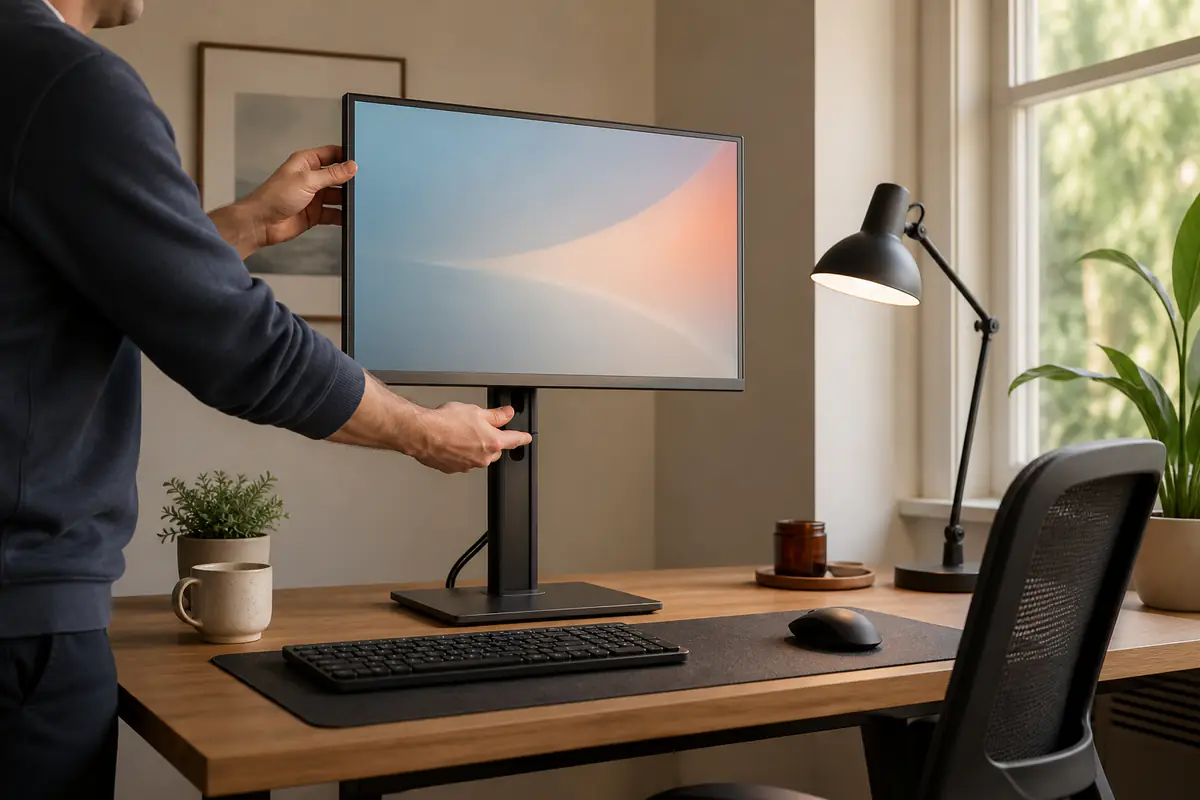
Set distance, height, tilt and lateral position for the actual chair, desk and task. Keep the screen stable and within the stand or arm’s load and mounting limits.
Change one dimension gradually and notice neck, shoulder and eye comfort over normal work. A fashionable very-low or very-high position is not an ergonomic rule.
Verify monitor-arm compatibility
Check VESA pattern, monitor weight without its stand, centre of gravity, arm range, desk clamp, desktop construction and cable movement. Tighten only as instructed.
Do not rely on screen size alone. An ultrawide or deep panel can exceed an arm’s practical leverage even when its mass appears within a headline limit.
Control room light before brightness
Place the monitor to reduce direct glare and bright reflections and keep work lighting stable. Adjust brightness to the room and task rather than leaving a showroom mode active.
Very bright output in a dim room can be uncomfortable and waste energy. Automatic brightness can help some users but should be evaluated for unwanted changes during colour-sensitive work.
Calibrate only to the required level
For general use, a stable preset, sensible white point and consistent room may be enough. Professional colour work can justify a supported measuring device, target and documented workflow.
Do not copy calibration values from an online unit because panel variation, firmware, lighting and instruments differ. A profile is useful only when the operating system and applications apply it correctly.
Separate monitor controls from software profiles
Picture mode, brightness and hardware colour controls operate in the monitor, while graphics settings and ICC profiles operate in the source system. Record both layers.
Double correction can create unexpected colour. Reset to a known state and add one controlled profile rather than stacking presets, night modes and application filters.
Treat USB-C as several capabilities
The same connector can carry display data, USB, network and power, but cable and port support vary. Record power delivery, data rate, display mode and any dock in the path.
Use the product-specification guide before replacing a monitor because a laptop charges slowly or peripherals disconnect.
Manage KVM and hub expectations
A built-in KVM may switch video, USB and network on different timings. Save input-to-upstream assignments and test wake, sleep and keyboard access with each source.
If problems occur, simplify to one source and one peripheral, then add the hub path back. Firmware, cable and device power can all affect behaviour.
Clean the panel without pressing it
Power down and let the panel cool. Remove loose dust with the manufacturer-approved cloth and use only the specified liquid method, applied carefully rather than sprayed into the bezel.
Paper towels, window cleaner, alcohol or pressure can damage coatings or pixels depending on the panel. Follow the exact manual rather than a generic screen-cleaning recipe.
Keep ventilation and cables clear
Do not block vents with paperwork, fabric or a wall position outside the required clearance. Route cables with enough movement for height adjustment and without pulling on ports.
A sharply bent display or USB-C cable can create intermittent faults. Label known-capability cables because identical-looking replacements may support different bandwidth or power.
Handle pixel and uniformity concerns objectively
Test normal content first, then use a simple solid-colour check at ordinary viewing distance if a defect is suspected. Record location, conditions and photographs without pressing or massaging the panel.
Policies for bright, dark or stuck pixels vary. Check the seller and maker terms and use the warranty-versus-guarantee guide when documenting a claim.
Plan for firmware and software support
Record firmware changes, monitor utilities and driver or operating-system updates that alter wake, colour, USB or KVM behaviour. Use only official files and instructions.
A failed update can make the display unusable. Do not interrupt power or use firmware intended for a similar-looking model, region or hardware revision.
Measure energy and sleep behaviour
Check power-saving, automatic input search, USB charging and wake behaviour. A monitor that keeps hubs or laptops powered can use more electricity than its visible standby state suggests.
Compare settings through the running-cost guide and keep wake reliability proportionate to the energy saved.
Test sleep and wake without hiding faults
Record whether blanking follows operating-system sleep, input switching, a dock, cable movement or the monitor’s own power setting. Test a known-good direct connection before changing firmware.
Repeatedly unplugging power may restore a session without identifying the cause. Preserve the sequence and check official support information for the exact model and source device.
Use multi-monitor setups deliberately
Align scaling, height and cursor arrangement around the primary task rather than forcing two different panels to appear identical. Mixed pixel density, coatings and colour can produce normal visual differences.
Keep cables and arms within ratings and confirm that the graphics output supports the combined resolution and refresh demand. Disable an unused display when it adds distraction or power cost without useful workspace.
Replace when the job, not fashion, has changed
A monitor can remain useful when a stand, cable or profile solves the real problem. Replacement is stronger when size, resolution, ports, support or panel condition blocks a defined workflow.
The Tech & Audio offers complementary setup checks for the computer and peripherals attached to this monitor. Preserve serial, repair and recycling records and remove saved USB or network configuration where relevant.
What should happen when the monitor feels wrong?
The display remains safe and stable
Signal, scaling, room light, stand position and profiles can be checked one at a time.
The hardware no longer supports the job
Electrical faults, panel damage, unsupported ports or failed serviceability outweigh further setting changes.
Balanced verdict
Monitor ownership is the management of a complete viewing system. Keep a known-good signal path, fit the stand to the user, control room light and calibrate only as precisely as the work requires.
A stable comfortable display is better value than a specification upgrade that leaves the same desk and cable problems unresolved.
Official checks:
HSE display screen equipment guidance ↗
NHS eye health guidance ↗
GOV.UK product safety advice ↗
GOV.UK recycling collections ↗
Frequently asked questions
Should a monitor run below its native resolution for larger text?
Usually start at native resolution and adjust operating-system scaling, then verify application rendering and comfort.
Can calibration settings be copied from another monitor?
They are not reliably transferable because panels, lighting, firmware and workflows vary.
Does every USB-C cable support a monitor?
No — Connector shape does not prove display bandwidth, data speed or power capability.
How should a monitor screen be cleaned?
Power it down and follow the exact manufacturer method with a compatible cloth and liquid, without spraying into the bezel.
When is a monitor arm worthwhile?
When its verified load, VESA pattern, desk fixing and range solve a real positioning problem safely.
Methodology and limitations
We assessed monitor ownership through baseline configuration, resolution, refresh, stands, arms, lighting, calibration, USB-C, KVM, cleaning, ventilation, pixel concerns, support, energy and replacement. The method treats the screen, source, cable, operating-system settings, room and physical support as one signal and viewing system. We prioritised repeatable comparisons at normal viewing distance, supported settings and gradual ergonomic adjustments rather than copied calibration values or single-pattern inspection. We did not test individual displays, diagnose medical symptoms or assume that matching connector shapes guarantee bandwidth, power or peripheral support. Persistent discomfort, electrical faults and uncertain mounting loads require appropriate professional advice.
Limitations
Panels, firmware, coatings, ports, support policies and user needs vary. Follow the exact manual and obtain qualified help for electrical, mounting or persistent health concerns.