4K televisions ownership guide: energy, software support and screen care
A 4K television remains useful when picture settings, energy, apps, updates, connections and screen care are managed as one system. Most ownership value comes after the showroom demonstration.
In this guide
Document the baseline before changing settings or buying accessories
A brighter picture, more processing or a new HDMI cable is not automatically an improvement. Use a suitable picture mode, record input settings and firmware, control app accounts, clean conservatively and monitor energy under the real routine.
Choose hardware with the 4K television value guide, verify ports and panel choice in the 4K television buying guide, plan audio through the soundbar ownership guide, and compare smaller displays with the computer-monitor value guide.
| Issue | Evidence to record | Controlled action | Avoid |
|---|---|---|---|
| High energy | Mode, brightness, hours and meter period | Reduce unnecessary output | Comparing unlike content |
| Poor picture | Source, format, input and mode | Reset one input baseline | Changing every control |
| App friction | Account, permissions and update state | Remove unused access | Sharing passwords |
| Screen marks | Panel instructions and material | Dry compatible cleaning | Spraying screen |
Television ownership record
- Keep the television’s full model suffix and serial identifier with the purchase and service records.
- Label every HDMI source.
- Photograph baseline settings.
- Record firmware before updates.
- Review app permissions.
- Measure real viewing hours.
- Keep vents clear.
- Store support and recycling details.
Establish a neutral picture baseline
Choose the manufacturer mode closest to the intended room and content and record every changed control. Cinema, Filmmaker or standard labels vary by model.
Compare at equal room light and source. A vivid showroom mode can increase brightness and processing without improving accuracy or comfort.
Treat each input as a separate configuration
Record HDMI port, device, cable, input label, enhanced-format setting and picture mode. Televisions can store different controls for each port or app.
When one source looks wrong, do not reset every input. Reproduce the issue with a known signal and change one relevant setting.
Understand HDR as content and display behaviour
HDR labels describe format support, not identical brightness, tone mapping or room performance. Verify that the source, app, port and television all recognise the format.
Do not leave HDR-like dynamic processing on for ordinary content simply to make it brighter. Judge detail, clipping, comfort and creator-intended mode.
Control motion processing by content
Sports, films and games may suit different interpolation or response settings. Record judder, blur and artefacts rather than accepting the strongest value.
Use a known scene and adjust one control. Maximum smoothing can create unnatural motion or image errors.
Use game modes with measured priorities
Game mode can reduce input processing while changing local dimming, colour or motion features. Match console output, refresh rate and HDMI port capability.
A badge does not prove every game uses the feature. Check the console and television status and keep accessibility and burn-in guidance in view.
Measure energy in the real routine
Record picture mode, brightness, room, content mix, screen size, daily hours and standby behaviour. A short meter sample should cover representative viewing.
Use total cost of ownership with a realistic tariff and hours. Do not extrapolate one bright demo loop to a whole year.
Use ambient sensors deliberately
Automatic light and energy features can reduce output in darker rooms but may surprise viewers. Test them over a normal day and record the result.
Do not disable every energy feature because one scene looked dim. Identify whether the sensor, eco mode, HDR or app caused the change.
Plan firmware updates and recovery
Read release notes where available, record version and settings, use stable power and avoid updating immediately before an important event.
Do not install files from unofficial sources. If an update fails, follow the exact official recovery sequence and keep the model identifier ready.
Manage app accounts and privacy
Review signed-in services, viewing-data choices, microphone permissions, advertising settings and unused apps. Use unique passwords and sign out before transfer.
Do not share an adult account simply to avoid creating appropriate household profiles. Protect purchase PINs and remove old device authorisations.
Keep HDMI-CEC under control
Record which device should power on, switch input and control volume. Manufacturer names differ and several devices can create loops.
Commission one TV-to-device control path first so a later change can be traced to the added connection. Repeated input switching can come from a source or soundbar, not from panel failure.
Protect ventilation and physical stability
Keep vents clear and follow stand or wall-mount clearances. Use the complete weight, VESA pattern and wall type for mounting.
Do not balance a large television on undersized furniture or improvised spacers. Secure furniture where appropriate for household risks.
Clean the screen conservatively
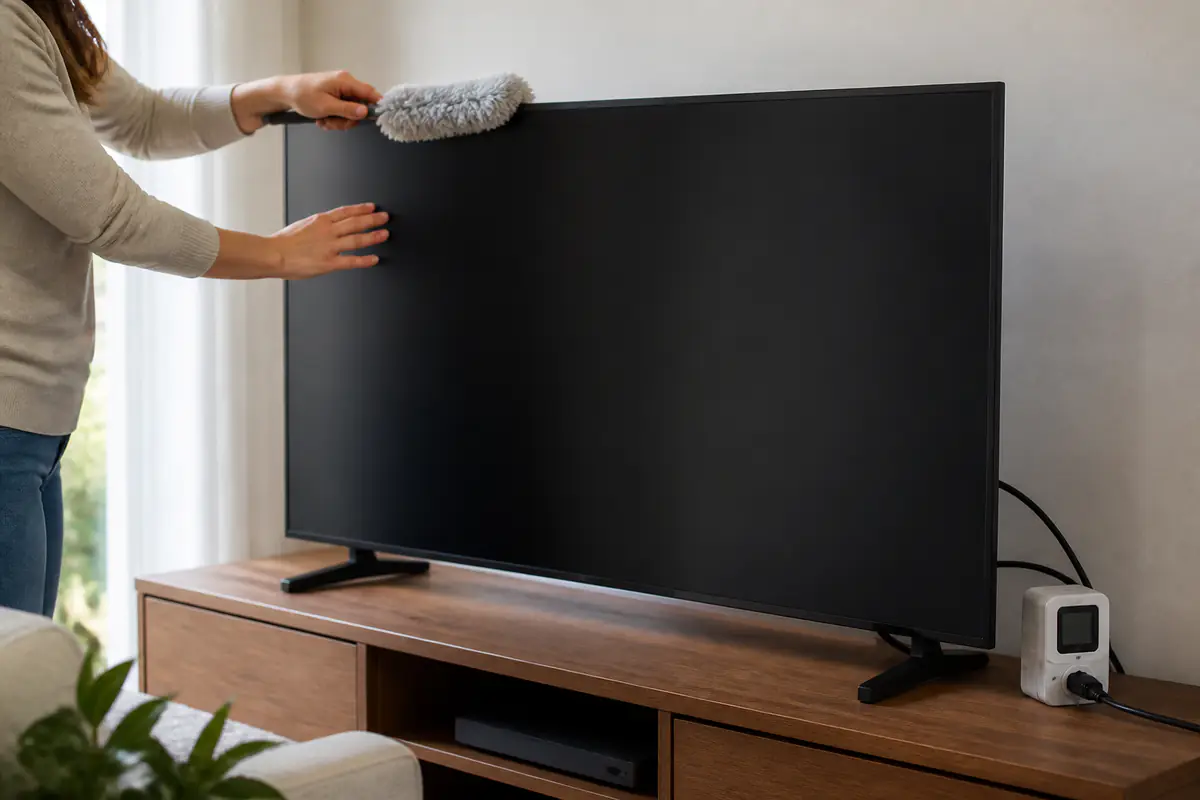
Power off and let the panel cool. Follow the exact screen instructions with a clean soft cloth and minimal compatible moisture if permitted.
Never spray liquid on the panel or use window cleaner, solvent, abrasive paper or heavy pressure. Support the screen without twisting it.
Respond to image retention by technology
Temporary retention, permanent damage and normal panel uniformity are different questions. Follow the exact OLED, LCD or other panel guidance and built-in maintenance.
Do not repeatedly run unofficial videos or manual cycles. Vary content and avoid unnecessary static high-brightness elements according to manufacturer advice.
Plan software end of life
Keep external streaming devices as a possible app-support route, but check HDMI, control, energy and security. A functioning panel need not be replaced solely because one app ends support.
Browse Tech & Audio for related ownership decisions. Recycle electronics through accepted routes and reset accounts before disposal.
Keep the original remote and recovery controls
Store the original remote, stand screws and proprietary adapters in a labelled place. Universal control can handle daily use without replacing setup or reset access.
Remove batteries for long storage where appropriate and inspect for leakage. Do not buy a lookalike replacement until full model compatibility is confirmed.
Check aerial and broadcast path separately
For live television problems, record aerial, tuner, signal strength, region and whether another set or app works. Streaming success does not prove the broadcast path is healthy.
Avoid repeated retunes during a transmitter fault because it can remove correctly stored channels. Use official coverage or service information before changing hardware.
Control children and guest purchasing
Use profiles, age controls and purchase PINs where appropriate. Keep payment confirmation separate from simple app navigation and review accidental-purchase procedures.
Do not use a single unrestricted adult profile as the easiest household route. Account design is part of television ownership and data protection.
Plan power cuts and surge risk
Use a safe approved electrical arrangement and allow the television to complete updates and panel maintenance. Unplug only according to manufacturer and electrical-safety guidance.
A surge protector is not a cure for damaged wiring or overloaded extensions. Seek competent electrical advice for repeated trips, heat, arcing or damaged sockets.
Move the panel with the right support
Keep original fitted packaging where practical and follow the model instructions for lifting, orientation and stand removal. Large thin panels can flex under uneven hand pressure.
Use enough adults or professional movers, clear the route and protect screen faces without adhesive contact. Photograph condition and port layout before disconnection.
Calibrate sound and picture together
Picture processing, source delay and external audio can affect lip sync. Record the baseline on television, source and soundbar before adding offsets.
Use one known programme and change one device at a time. A correction that fixes one app but breaks every input is not a stable solution.
Use subtitles and accessibility features deliberately
Record caption style, audio description, hearing or vision settings and profile ownership so an update or reset does not remove essential access.
Accessibility features are not secondary picture options. Test them on each main source and keep instructions available to every household user.
Review standby and network wake behaviour
Measure whether quick start, voice wake, network casting or scheduled updates keep the television active. Decide which convenience features are genuinely used.
Do not disable network security updates solely to reduce a small standby figure. Compare energy and support consequences together.
Keep a fault log before service
Record date, source, input, picture mode, firmware, temperature, error and whether a restart changed the symptom. Photograph patterns without pressing the screen.
A concise repeatable log helps support distinguish source, software and panel issues. Do not open the cabinet or attempt high-voltage repair.
What should you do when television ownership becomes frustrating?
The issue follows one source, mode or app
A documented input, format, account and energy baseline can restore predictable operation.
A repeatable limitation remains
Official diagnostics isolate hardware, firmware or app support without requiring premature panel replacement.
Balanced verdict
4K television value depends on stable configuration, safe care and supported software. Control brightness, inputs, accounts and updates before replacing cables or hardware.
A well-maintained panel with a simple external source can outlive its first generation of built-in apps.
Official checks:
Ofcom television and on-demand advice ↗
GOV.UK product safety advice ↗
Electrical Safety First product safety ↗
Recycle Your Electricals guidance ↗
Frequently asked questions
Should vivid mode be used at home?
Only if it suits the room and purpose after comparison; higher brightness and processing are not automatically better.
Do all HDMI ports support the same features?
No — Port bandwidth, ARC or eARC and enhanced-format support vary by exact model.
Should television firmware be updated?
Use official updates with stable power, saved settings and a recovery plan; timing depends on need and guidance.
Can window cleaner be used on a TV screen?
Do not use it unless the exact manufacturer explicitly permits it; spray-free compatible cleaning is safer.
Must the TV be replaced when an app loses support?
Not necessarily — A supported external streaming device can extend useful panel life when compatible.
Methodology and limitations
We assessed 4K television ownership through picture modes, HDR, motion, games, energy, sensors, updates, apps, HDMI control, mounting, screen care and software support. We did not test individual televisions.
Limitations
Panel technologies, settings, firmware, apps, ports and care instructions vary. Follow the exact model manual and official support for persistent faults or mounting decisions.