Choosing a laptop docking station: ports, displays, power and compatibility
A dock is useful only when the laptop, cable, displays and power supply agree on what one connection can carry. Start with the computer’s documented limits, then buy the smallest dock that meets the real desk setup.
In this guide
Map every required connection before comparing port counts
Choose by host compatibility, display resolution and refresh rate, charging requirement and simultaneous port behaviour—not by the number of sockets on the casing. A dock can have two display outputs yet support only one extended desktop on a particular laptop, or advertise high-speed USB while sharing bandwidth across every attached device.
Dock listings compress several standards into a row of icons. USB-C describes a connector shape, while the functions behind it may include different data rates, DisplayPort modes, USB4, Thunderbolt and USB Power Delivery. The same dock can therefore behave differently on two computers. A defensible purchase starts with the laptop maker’s specifications and ends with a written connection plan.
Build the desk requirement first
| Requirement | Evidence to collect | Common mismatch |
|---|---|---|
| Host link | Laptop port type, protocol and operating-system support | A USB-C socket exists but does not carry the expected video or speed. |
| Displays | Quantity, resolution, refresh rate, connector and extended/mirrored mode | The dock’s headline maximum applies to one display only. |
| Charging | Laptop input requirement and dock power passed to the host | The power supply rating is confused with power available to the laptop. |
| Data | Fastest drive, card reader, audio and peripheral requirements | Several high-demand devices share one upstream link. |
| Network | Ethernet speed, Wi-Fi fallback and managed-network needs | A nominally fast port is limited by the host or adapter. |
Identify what the laptop port actually supports
Look up the exact model rather than relying on the shape of the socket. Record whether the port supports charging input, video output, the stated USB data generation, USB4 or a Thunderbolt version. Similar-looking ports need not expose identical functions, and port capability can differ between the left and right sides of the same computer.
Check the manufacturer’s display-support page for the maximum number of external screens and the combinations allowed. Apple, for example, tells buyers to verify the Mac model’s display specification before adding adapters, while Microsoft publishes compatibility and resolution tables for Surface docks. The dock cannot create a native display capability the host does not provide. Our product-specification guide helps separate a connector label from a complete performance claim.
Specify each display, not just “dual monitor”
Write down the desired resolution and refresh rate for every screen, together with HDMI, DisplayPort or USB-C input. A product may support a high resolution on one output but lower the limits when two displays are active. Some arrangements mirror rather than extend the desktop, and operating-system support for display-compression or software-driven adapters can vary.
For office documents, a stable native resolution and correct scaling usually matter more than a gaming-grade refresh rate. Colour-critical or high-refresh work needs a clearer end-to-end specification: host graphics capability, dock protocol, cable, display input and operating-system setting. If a listing gives only a maximum such as “8K capable”, treat it as incomplete until the exact multi-display table is found.
Separate charger input from laptop power delivery
A 100-watt power brick does not mean 100 watts reaches the laptop. The dock consumes power for itself and attached devices, so its stated pass-through can be lower. Compare the laptop’s recommended adapter with the power the dock promises to the host. A lower figure may still maintain charge during light work but lose battery under sustained load.
Check whether the power unit is included. Bus-powered travel hubs draw from the laptop and suit low-demand peripherals, but they may not run several drives or charge the computer. Powered desktop docks are less portable yet better suited to displays, Ethernet and repeated daily connection. USB-IF explains that USB Power Delivery negotiates power and can support much higher levels than basic USB; that does not make every cable or host capable of the headline maximum.
Count useful ports under simultaneous use
- Keyboard and mouse: ordinary USB ports are usually sufficient; do not spend high-speed bandwidth here.
- External SSD: match the drive, dock port and upstream link rather than assuming every USB-C port is fastest.
- Card reader: check card type and stated interface, not only the presence of a slot.
- Audio: confirm whether a 3.5 mm socket supports headphones only or a combined microphone headset.
- Charging accessories: peripheral charging output is separate from the power delivered to the laptop.
Port placement also matters. A short captive host cable can leave a dock suspended beside a laptop stand. Front ports are convenient for removable media, while power, monitors and Ethernet are tidier at the rear. Measure cable reach and decide whether the dock must work with a closed-lid, raised or vertical computer.
Understand shared bandwidth
A dock funnels multiple devices through one upstream connection. Displays, Ethernet, storage and card transfers may compete, depending on the architecture. Marketing that lists each port’s theoretical maximum does not establish that every port reaches it simultaneously. Look for an explicit bandwidth diagram or concurrent-use table.
Estimate the busiest realistic task: transferring a large photo library while using two displays and a video call is more demanding than writing with a keyboard and one monitor. If fast storage is critical, connecting the drive directly to a second laptop port may be more reliable than buying an oversized dock. Apply the same restraint used in our future-proof technology guide: pay for documented headroom, not unexplained labels.
Check Ethernet, updates and operating-system support
For wired networking, verify the Ethernet speed and whether the organisation needs features such as MAC-address pass-through or network boot. Home users may not need enterprise functions, but a clear driver and firmware support page is valuable. Docks are active electronics; compatibility can improve or regress with firmware, operating-system or graphics updates.
Search the maker’s support area before purchase. A downloadable manual, current firmware, troubleshooting instructions and a model-specific compatibility list are stronger evidence than a marketplace title promising universal use. If essential behaviour depends on a proprietary driver, check support for the present operating system and likely replacement computer.
Inspect cables and power supply as part of the product
The host cable must carry the required data, video and power, and its length affects desk placement. A replaceable certified cable is easier to service than a captive lead, though a captive lead cannot be forgotten. For higher power levels, use a cable rated for that level and follow the laptop and dock maker’s guidance.
Check the mains plug, power-brick size and ventilation. Avoid burying the dock under papers or against soft furnishings. If buying refurbished, confirm that the correct power unit and host cable are included; a physically compatible substitute may provide the wrong voltage, wattage or protocol. See our refurbished technology guide before accepting an incomplete bundle.
Test the complete setup within the returns window
Connect every intended display and peripheral, then test wake from sleep, restart, video calls, sustained file transfer, wired network and charging under normal workload. Check that displays return after unplugging and reconnecting once. Intermittent faults matter more than a perfect first five minutes.
Keep packaging and note serial numbers until the setup is stable. A dock that works only after a particular plugging order may be tolerable for occasional travel but poor for a permanent desk. Follow our UK returns and refunds guide if the documented function is missing, while distinguishing statutory rights from a retailer’s change-of-mind policy.
Which docking route fits?
You need portable basic expansion
One display, modest peripherals and occasional Ethernet cover the use case, and the laptop can use its own charger separately.
You want one-cable daily connection
The host is explicitly compatible, charging is sufficient, and the documented display and bandwidth tables match every attached device.
Balanced verdict
The best dock is a compatibility solution, not a port collection. Confirm the computer’s port and display limits first, then match power delivery, simultaneous screen behaviour, bandwidth and cable layout. A smaller documented dock is a safer buy than a universal-looking model whose headline figures cannot operate together.
Continue with our screen-specification guide, USB-C charger guide, total-cost-of-ownership framework and the Tech & Audio archive.
Check current official sources:
USB-IF Power Delivery overview ↗Apple display connection guidance ↗Microsoft Surface USB4 Dock guidance ↗
Frequently asked questions
Does every USB-C laptop support a docking station?
No. The connector may support different combinations of data, video and charging. Check the exact laptop model and port specification.
Why does a dual-display dock show the same picture twice?
The host, operating system or connection method may support mirroring but not two independent extended displays in that arrangement.
Will a 100W dock charge a laptop at 100W?
Not necessarily. Check the stated power passed to the host after the dock’s own needs, the cable rating and what the laptop accepts.
Do I need Thunderbolt for office work?
Often not. A documented USB-C or USB4 solution may cover one or two displays and ordinary peripherals. Thunderbolt is valuable only when its capabilities solve a defined requirement.
Should an external SSD connect through the dock?
It can, provided the port and shared upstream bandwidth meet the drive’s needs. Direct connection may be better during large sustained transfers.
Methodology and limitations
We compared docking stations through host-port capability, display topology, charging, data sharing, Ethernet, cable layout, support and realistic testing. This is a specification-led buying framework, not a hands-on review of a named dock.
Limitations
Laptop firmware, operating systems and dock compatibility change. Recheck the exact host model, dock revision and official support pages before purchase and again before purchase.
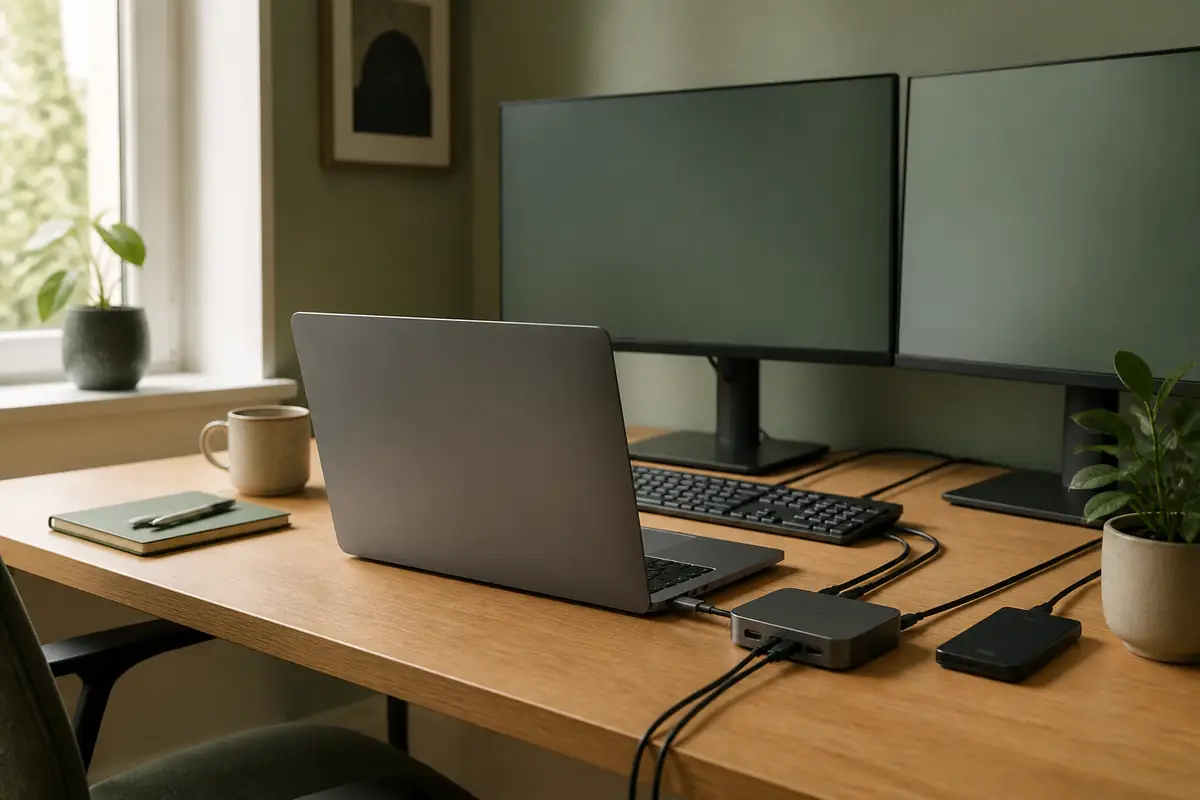
The image is an editorial illustration, not a photograph from a product test. Links are editorial and non-affiliate.