External SSD buying guide: capacity, speed, encryption and backup planning
A portable SSD can make large transfers fast, but it is not automatically a backup, archive or privacy system. Choose the drive around a defined copy, capacity, interface and recovery plan.
In this guide
Buy the backup role before the speed figure
Size the drive from protected data plus growth, confirm the slowest interface in the chain and plan a second independent copy. Encryption protects a lost drive only when keys are managed safely; a forgotten password or missing recovery key can lock out the owner too.
Start with an identifiable technology seller using our Scan Computers review, then use the USB hub compatibility guide and refurbished product-grades guide where relevant.
| Use case | Capacity approach | Speed priority | Protection priority |
|---|---|---|---|
| Laptop backup | Current protected data plus realistic growth and versions | Sustained speed sufficient for scheduled copies | Disconnect after backup and keep another copy |
| Photo or video work | Active projects plus scratch and delivery margin | Match host, cable and sustained-write need | Separate working drive from archive |
| Travel transfer | Only data needed away from home | Portable interface and thermal consistency | Encryption, recovery key and physical control |
| Long retention | Verified files plus migration headroom | Low priority after initial copy | Multiple media, checks and planned refresh |
Record before buying
- Exact protected folders and current size.
- Expected annual growth.
- Laptop and desktop port capabilities.
- Included cable ends and rated speed.
- File-system compatibility.
- Hardware or operating-system encryption plan.
- Recovery-key storage location.
- Second-copy and restore-test schedule.
Start with the data and recovery objective
List the folders, libraries, application exports and project files that genuinely need protection. Measure their present size rather than estimating from the computer’s total storage. Decide whether the drive will hold one mirror, several historical versions, active work or a transport copy. These jobs have different capacity and deletion risks.
The National Cyber Security Centre defines a backup as a copy kept in a separate safe location and notes that removable media should be disconnected when not in use so malware cannot automatically reach it. One SSD permanently attached to the only computer is convenient storage, but it is weak protection against theft, electrical damage, ransomware and mistaken deletion.
Choose capacity with headroom, not vanity
Add the current protected data, space for growth and the versions retained by the backup software. A drive filled close to its limit can make versioning and large temporary writes awkward. For active media work, keep the working requirement separate from long-term archive volume so an expensive fast drive is not bought for cold files that rarely move.
Manufacturers and operating systems can display capacity using different decimal and binary conventions, so available space may look lower than the number on the box. Formatting, bundled partitions and system files also consume space. Compare stated capacity consistently and do not accuse a legitimate drive of being short solely because the computer uses another unit convention.
Understand the slowest link in the speed chain
The drive, controller, enclosure, cable, connector, host port, file system and workload all affect transfer speed. USB-C describes a connector shape, not one speed. A fast SSD connected through a slow port or charge-only cable cannot deliver its headline rate. Check the laptop specification and the cable’s data rating, not merely whether the plug fits.
Large sequential video files can approach advertised conditions more closely than thousands of small documents. Encryption, thermal control, cache exhaustion and a nearly full drive can reduce sustained performance. Use the expert-test comparison guide to record interface generation and realistic workload without mixing peak and sustained claims.
Choose the file system around the computers
A drive prepared for one operating system may be read-only or unsupported on another without additional software. Decide whether the SSD must move among Windows, macOS, Linux, tablets, cameras or consoles. Check official support for maximum file size, permissions, encryption and repair tools before committing the only copy.
If reformatting is needed, copy and verify every file elsewhere first because formatting normally erases the drive. Label the volume with a neutral operational name rather than sensitive owner data. Record the chosen file system and purpose so a future user does not erase a backup after mistaking it for an empty transfer drive.
Treat encryption and recovery as one decision
Encryption can protect information if a portable drive is lost or stolen, but only when the unlock method and recovery key are managed. Microsoft states that BitLocker To Go covers removable drives on supported Windows editions and that Microsoft cannot recreate a lost recovery key. Save the key somewhere separate from the encrypted SSD, with access appropriate to the data.
Hardware-encrypted drives can simplify cross-device use but introduce their own keypad, app, firmware and recovery model. Verify exactly what is encrypted and what happens after too many failed attempts. Do not store the only recovery instructions on the drive they unlock. Our storage and privacy guide provides another example of separating retention from access.
Separate working storage from backup
A drive used every day for editing can fail, be dropped or have files overwritten. Keep another independent copy of anything that would be costly to recreate. NCSC advises disconnecting removable backup media when not in use; a rotating pair can maintain one offline copy while another is updated, provided both are verified and not stored together indefinitely.
Cloud storage can be another location, but synchronisation alone may repeat deletion or corruption. Understand version history and restore behaviour. For irreplaceable data, use multiple copies on different media or services and keep one away from the primary device. The device storage capacity guide shows how local capacity and retention must be considered together.
Inspect portability, cable and thermal design
A portable SSD should have strain-free connectors, a cable long enough for the intended desk and an enclosure that can shed heat without being placed on bedding. Small size is helpful in a bag but increases the chance of loss. Use a protective pouch that does not trap the drive while it is operating and never suspend it by the cable.
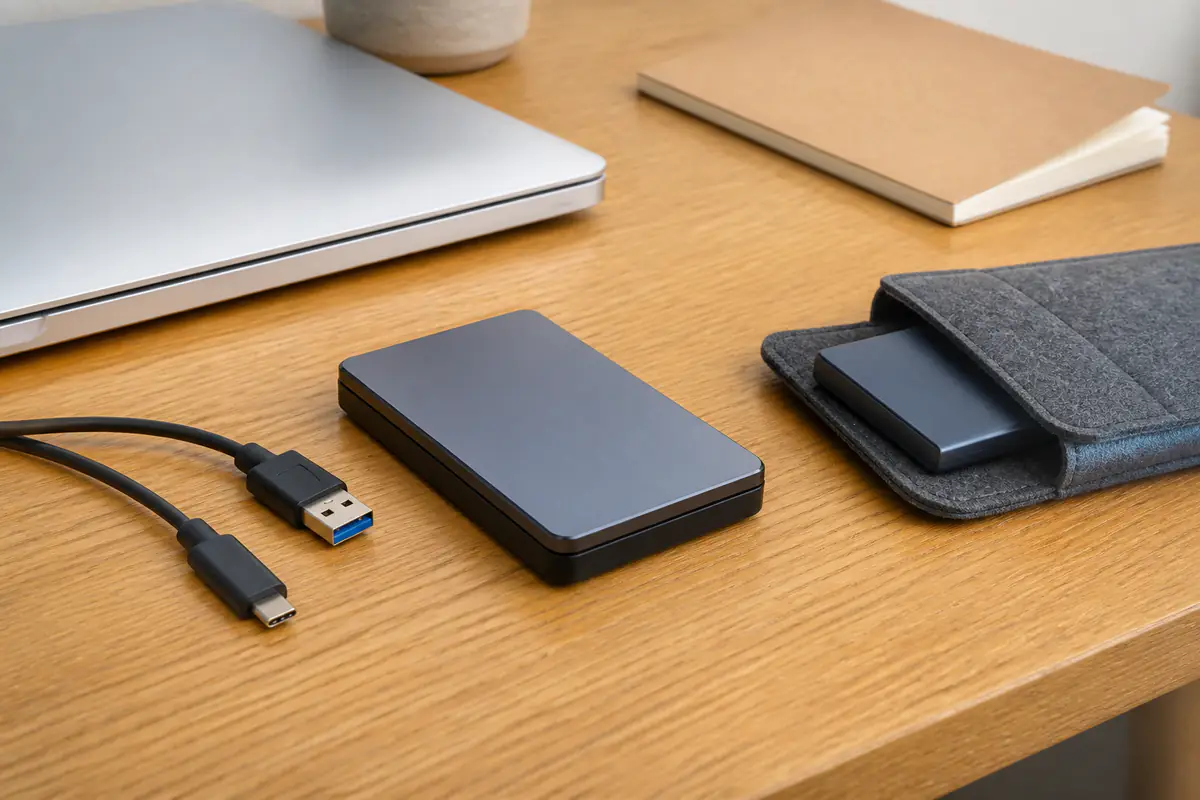
Check whether both USB-C and USB-A cables or adapters are supplied, but avoid a chain of unknown adapters. A loose connection during a write can corrupt files. Our USB-C signal-chain guide explains why connector shape alone does not settle capability; a direct verified port remains preferable for recovery.
Verify seller, warranty and authenticity
Storage devices are vulnerable to counterfeit capacity and misleading performance listings. Buy from an identifiable seller, save the listing and serial evidence, and check manufacturer warranty terms. A marketplace name at the top of a page does not always identify the legal seller. Use the genuine online-shop guide before trusting an unusually cheap drive.
On arrival, confirm the exact model, capacity and included cables before loading sensitive data. Run the manufacturer’s official diagnostic where available and copy a non-critical test set, then verify files and safe ejection. Do not publish a serial number or register through a link printed on suspicious packaging; navigate to the official maker site independently.
Test restores and plan retirement
A backup is not proven by a green tick alone. Periodically restore a representative set to another location and open the files. Record the date, software version and any errors. Monitor official health information where supported, but do not treat one percentage as a guarantee that the next read will succeed.
Retire or downgrade a drive after repeated disconnects, read errors, physical damage or an official warning. Copy recoverable data before running destructive tests. For failure involving the only copy, stop repeated experiments and consider professional recovery. Securely erase a working retired drive using current official guidance before reuse or disposal, while recognising that damaged media may require controlled destruction.
Choose a portable SSD or another route?
Fast, compact local transfer matters
The host interface is confirmed, the capacity includes growth and another independent copy will exist.
Long retention or lowest cost dominates
A larger hard drive, managed cloud service or multi-media archive better matches the recovery objective.
Balanced verdict
The best external SSD is the one that fits a tested recovery plan, not the one with the largest speed number. Size from real data, verify the whole interface, manage encryption keys and maintain another independent copy.
Use the linked storage, cable, specification, password, cloud, hub, seller and refurbished-device guides.
Official checks:
NCSC guidance on backing up important data ↗
NCSC removable-media backup guidance ↗
Microsoft BitLocker Drive Encryption guidance ↗
Microsoft recovery-key guidance ↗
Frequently asked questions
Is an external SSD automatically a backup?
No — It becomes part of a backup when it holds a separate verified copy and is protected from the same loss events as the original.
Why is usable capacity lower than the box figure?
Decimal and binary display conventions, formatting and system data can make the shown amount differ from the marketed capacity.
Does USB-C guarantee the fastest speed?
No — USB-C is a connector. Drive, port, cable, protocol and workload determine actual transfer performance.
Should I encrypt a portable SSD?
Encryption is valuable for sensitive portable data if compatibility, passwords and a separately stored recovery key are planned.
How do I know a backup works?
Perform periodic test restores to another location and open representative files; a completed copy message alone is not enough.
Methodology and limitations
We reviewed current NCSC backup guidance and Microsoft BitLocker and recovery-key documentation on 2 September 2026. We compared capacity, interface, file-system, encryption, seller, physical and restore considerations. We did not benchmark individual drives or claim hands-on testing.
Limitations
Interfaces, operating-system support, firmware, prices and warranties change. Workloads vary materially. Encryption and secure erasure need product- and platform-specific instructions; professional or regulated environments require their own policy. Capacity and speed figures should be rechecked against the exact model, host and supplied cable before purchase.